Guides
How to Use Infinite Flight With Your EFB on iPad
November 10, 2026 · 8 min read · by Vincent Wu, Founder, Ascent EFB
Covers features arriving in Ascent 1.9.6. The App Store build today is 1.8.
Try Ascent EFB
Free for 30 days, then $59.99 your first year
One plan with everything in it: 3D terrain, geo-referenced FAA charts, the full weather stack and live traffic, all cached offline. $89.99 a year after the first. One trial per account, no card needed to look around.
Start a 30-day trialBy Vincent Wu, founder of Ascent EFB. Last updated November 10, 2026.
TL;DR: Starting with Ascent 1.9.6, Infinite Flight can drive Ascent's moving map. Put Infinite Flight on one device and Ascent on another, on the same Wi-Fi. In Infinite Flight, go to Settings › General and turn on Enable Infinite Flight Connect (Ascent finds the sim and you tap Connect) or Enable EFB Link (you tap Listen in Ascent). In Ascent, the controls live in Settings › Devices, in the Flight Simulator section. The sim position shows with an amber SIM badge, Ascent records the flight so you can replay it in 3D, and none of it counts as flight time. Infinite Flight is the only simulator Ascent supports.
Can I use my EFB with Infinite Flight?
Yes. With Ascent 1.9.6 on an iPad or iPhone and Infinite Flight on a second device on the same Wi-Fi network, turn on Enable Infinite Flight Connect or Enable EFB Link in Infinite Flight's Settings › General, then connect from Settings › Devices › Flight Simulator in Ascent. Your moving map follows the sim aircraft, marked SIM.
Why fly the sim with your real EFB
Most of what goes wrong with an EFB in the airplane is about the tablet, not the flying. You can't find the airport diagram, or you're three taps deep in a menu while the airplane wanders off heading. Those are habits, and the cheapest place to build them is on the couch:
- The plan and chart flow. Build the route in Ascent, fly it in the sim, and practice moving between map, plan and airport information where you'd really need them.
- Workload. Find out which actions pull your eyes inside for too long, and fix the setup on the ground.
- Unfamiliar airports. Fly a sim arrival into a field before the real one, with the same map and layers.
What it is not: training credit. Under 14 CFR 61.4, a simulator or training device used for credit toward a training, testing or checking requirement has to be qualified and approved by the FAA. Infinite Flight on a tablet isn't, so the time is practice. It doesn't go toward a certificate, a rating or currency, and Ascent never counts it as flight time (more on the logbook below).
What you need
- Ascent 1.9.6 or later, signed in to your Ascent account. The Flight Simulator section only appears when you're signed in.
- Infinite Flight on a second device. Infinite Flight's own features page lists EFB Link under its Pro plan, read November 10, 2026.
- One Wi-Fi network both devices can join, with the devices allowed to see each other. Home Wi-Fi usually works. More on why below.
Infinite Flight's features page describes this exact setup: the sim running on a device on the same Wi-Fi network as your EFB. Plan on two devices.
Step 1: Set up Infinite Flight
Both connection options live in Infinite Flight's Settings › General. Infinite Flight's documentation puts Connect toward the bottom of that list.
- Enable Infinite Flight Connect. Turns on Infinite Flight's Connect API. Infinite Flight's documentation says it's off by default.
- Enable EFB Link. Makes Infinite Flight send its position to EFB apps. Older forum posts call it ForeFlight Link.
You only need one. If unsure, start with Infinite Flight Connect, because Ascent finds it on its own.
Then start a flight. Ascent needs a loaded aircraft with a position, and Infinite Flight's menus don't give it one.
Step 2: Connect from Ascent
In Ascent, open Settings, and under Devices tap ADS-B Receiver. The Devices screen that opens has a Flight Simulator section at the bottom, with an Infinite Flight status row. Ascent starts searching your network as soon as that section is on screen.
Option A: Infinite Flight Connect (Ascent connects to the sim)
- The status line reads "Searching the local network…" while Ascent listens for Infinite Flight's announcement.
- Your sim device appears in the list by its device name, with the aircraft you're flying underneath. Tap Connect.
- If it never appears, type the sim device's IP address into the IP address field and tap Connect.
Option B: EFB Link (the sim sends to Ascent)
- Make sure Enable EFB Link is on in Infinite Flight.
- In Ascent, tap the EFB Link row ("Infinite Flight sends its position to Ascent") and its Listen button.
- The status reads "Waiting for EFB Link from Infinite Flight…" until the first position arrives.
Either way, once position is flowing, the status turns to "Simulated ownship from Infinite Flight" and your own-ship puck on the map moves with the sim, wearing an amber SIM badge. To stop, tap Disconnect.
Three behaviors are deliberate:
- Nothing reconnects by itself. The session ends when you close Ascent and doesn't return on the next launch, so Ascent never opens in a real cockpit on a simulated position.
- A quiet sim ends the session. If Infinite Flight stops sending for about three seconds, the puck goes back to the iPad's GPS or your ADS-B receiver.
- The ADS-B receiver path doesn't carry sim position. A simulator sending GDL 90 to the receiver port is ignored as a receiver. Sim position only reaches the map through the Flight Simulator section.
Troubleshooting
Ascent tells you what went wrong in the status line. Here's what each common message means and what to check.
"Couldn't reach Infinite Flight. Check that both devices are on the same Wi-Fi and Infinite Flight Connect is on." Connect is off in Infinite Flight, or the devices are on different networks. A dual-band router can show two network names, so check the name on both.
"No EFB Link data. In Infinite Flight, turn on Settings › General › Enable EFB Link, with both devices on the same Wi-Fi." Nothing arrived. Same two checks: the setting, then the network.
"Local Network access is off for Ascent." iOS asks each app for permission to talk to devices on your network. Turn it on in the iOS Settings app under Privacy & Security › Local Network. If Infinite Flight is on an iPhone or iPad, check its switch there too.
"Infinite Flight isn't flying. Start a flight, then connect." Load a flight and try again.
It never shows up on hotel, school or guest Wi-Fi. Many guest networks block devices from talking to each other, and some routers have a setting for it (often called client or AP isolation). Use a network you control.
One device only. Ascent is built around the sim on one device and Ascent on another. iOS limits what apps do in the background, so don't count on one iPad running both.
For the curious, it's all local network traffic. Per Infinite Flight's documentation, the sim announces itself over UDP on port 15000 and Connect API v2 listens on TCP port 10112. For EFB Link, Ascent listens for ForeFlight-format simulator messages on UDP port 49002, and for GDL 90 on UDP port 4000 after announcing itself on UDP port 63093. Ascent accepts both formats.
What to do once you're connected
Fly a real plan. Build the route in Ascent as you would for the airplane, then fly it. Practice the moments that cost attention: airport information on arrival, the next leg, the taxi diagram after landing.
Let Ascent record it. Ascent records your track whenever you fly, from the device's GPS, an ADS-B receiver or Infinite Flight. A sim recording is always marked as simulated and never mixes in real positions.
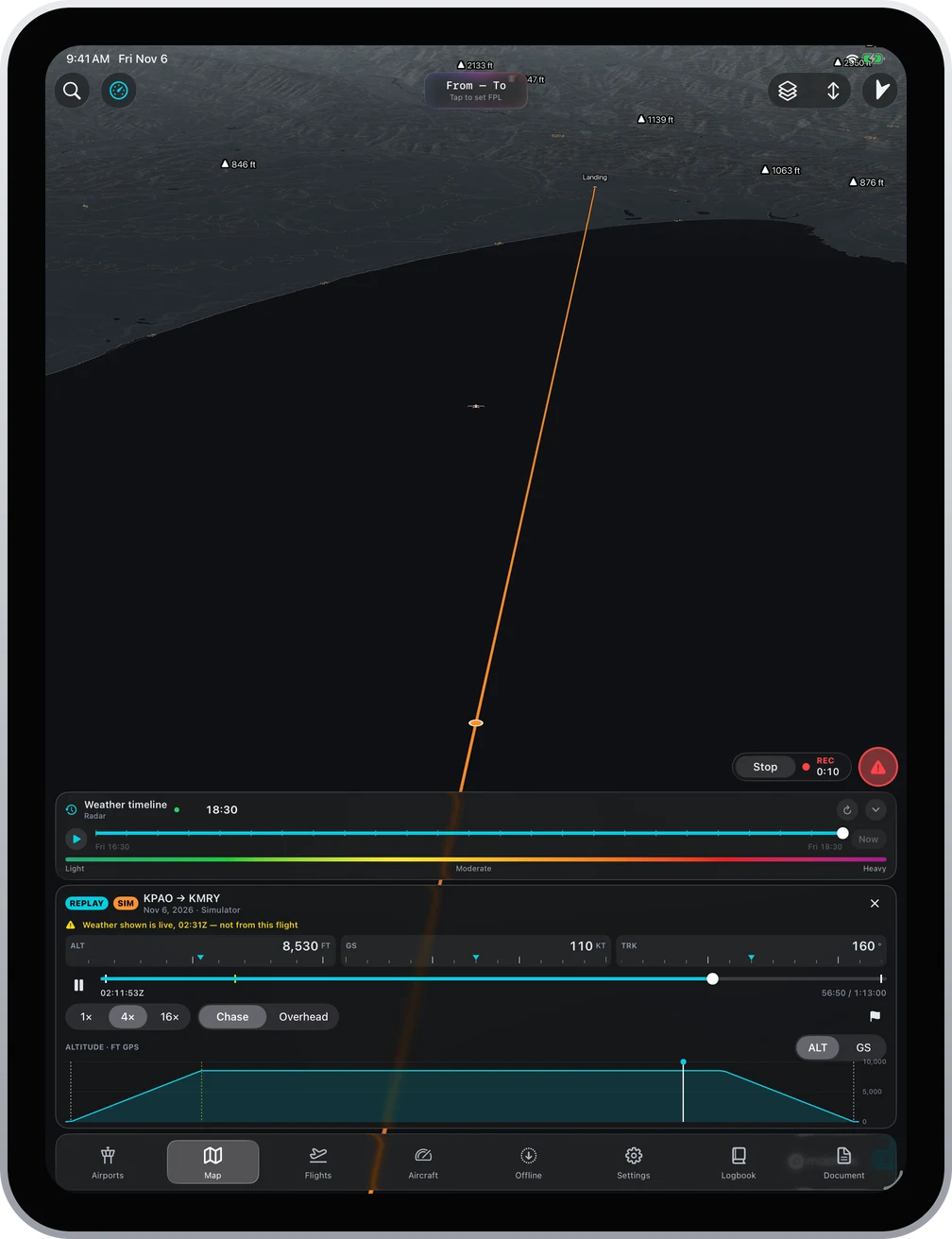
Replay it in 3D. After landing, Ascent shows a Flight detected card with Replay, and every recording sits in Recorded Flights at the top of the Logbook's entries. Replay in 3D plays the flight over terrain at 1x, 4x or 16x, chase or overhead, with an altitude or groundspeed profile. The image at the top of this post is a sim flight from Palo Alto (KPAO) to Monterey (KMRY), tagged SIM in the replay header.
Open the debrief. The Debrief button builds a debrief from the recorded track, the same as for a real flight, including flight phases and your path on final against a 3 degree reference. It comes from GPS alone, so it's labelled as an estimate.
What happens to sim data
- The map is marked. The own-ship puck shows SIM for as long as the sim drives it.
- Ascent sends simulated positions nowhere. The app doesn't upload them or add them to traffic. If you export a sim recording yourself, as GPX, KML or CSV, the file says it's a simulated flight.
- Your logbook stays real. A sim recording only goes into your logbook if you tap Log flight. Ascent then logs the time as Simulator, never as Total, with the remark "Simulator session recorded by Ascent." Your totals and currency don't change.
Other simulators
Infinite Flight is the only simulator Ascent supports. X-Plane and Microsoft Flight Simulator are not supported, and we'd rather say so than cost you an evening of network debugging.
More on the 3D flight replay page and the Infinite Flight page, and if you're still training, our EFB guide for student pilots. Ascent EFB is on the App Store for iPhone and iPad: apps.apple.com/us/app/ascent-efb/id6756762115.
Sources
- Infinite Flight, Connect API developer reference: the Settings › General › Enable Infinite Flight Connect setting, off by default, UDP discovery on port 15000, and Connect API v2 on TCP port 10112. Read November 10, 2026.
- Infinite Flight, Features: EFB Link listed under Pro, and the sim running on a device on the same Wi-Fi network as your EFB. Read November 10, 2026.
- Infinite Flight Community, Help connecting ForeFlight with my Infinite Flight: a community member's note that the setting is now called Enable EFB Link, in General settings. A forum post, not official documentation.
- 14 CFR 61.4, Qualification and approval of flight simulators and flight training devices, via Cornell LII.
Written by Vincent Wu, founder of Ascent EFB at Geospatios. Ascent behavior described here is from Ascent 1.9.6; App Store users get it when 1.9.6 reaches them. Infinite Flight setting names come from Infinite Flight's own pages and its community forum on the dates given, and Infinite Flight can rename them, so if a label has moved, look in its Settings › General. Simulator time is practice, not loggable flight time. Any EFB is a supplemental aid, and final authority rests with the pilot in command.
Try Ascent EFB
Free for 30 days, then $59.99 your first year
One plan with everything in it: 3D terrain, geo-referenced FAA charts, the full weather stack and live traffic, all cached offline. $89.99 a year after the first. One trial per account, no card needed to look around.
Start a 30-day trial